Odin 3.14.4 Safe 5-Slot Flashing Checklist for Samsung Galaxy
Verify SHA-256 hashes, check your bootloader bit and map BL, AP, CP, CSC and HOME_CSC safely in Odin3 v3.14.4 before flashing official Samsung firmware.

Short answer: Back up first, check your model code and bootloader bit under Settings > About phone > Software information, verify the archive SHA-256 hash, then load BL, AP, CP and HOME_CSC (to keep data) or CSC (full wipe) into Odin3 v3.14.4.
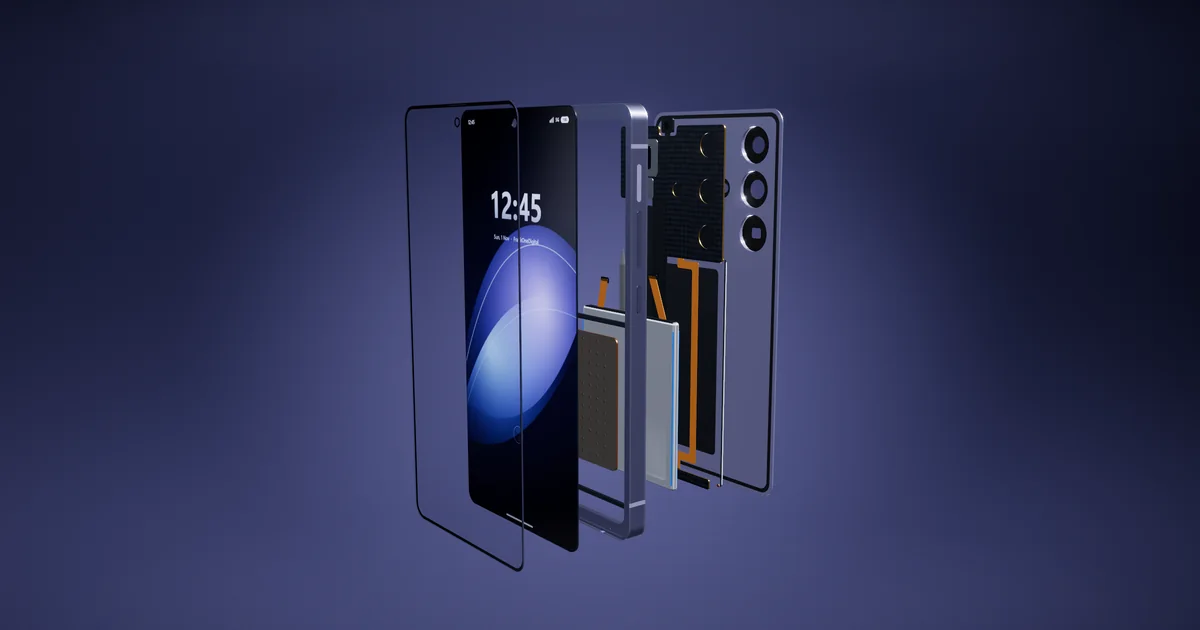
Flashing an official 5-file Samsung firmware package in Odin3 v3.14.4 lets you install a clean regional build from Bifrost or SamFw, or recover a phone without waiting for an over-the-air rollout. Keep one rule front of mind before downloading anything: internal FOTA test strings ending in ZZK (like One UI 9.5 test builds on Galaxy Build Watch) are server-side test markers, not flashable Odin archives.
Before you plug the phone in
A clean flash starts before you open Odin. Checking four details upfront prevents mismatched regional packages and bootloader fuse errors.
- Back up your data: Run Smart Switch to a PC or a USB-C drive like the Samsung T7 Shield Portable SSD on Amazon UK (Ad) first, even if you’re planning to use
HOME_CSC. - Check your exact model code: Open Settings > About phone > Model name (for example
SM-S948Bon a UK/Europe Galaxy S26 Ultra). Don’t mix Global/EU (B), US (U/U1) and Korean (N) firmware packs. - Check your bootloader bit: Look at the 5th character from the end of your current AP build under Settings > About phone > Software information. Samsung fuses block downgrading to a lower revision digit.
- Prep Windows and power: Install Samsung’s Windows USB driver, charge the phone past 60% and plug a reliable USB-C data cable straight into a PC port rather than an unpowered hub.
Verify the archive SHA-256 hash
Corrupt downloads cause failed flashes. Before extracting a firmware ZIP from Bifrost or SamFw, match its SHA-256 hash against the source listing:
- Windows (PowerShell):
Get-FileHash .\SM-S948B_EUX_firmware.zip -Algorithm SHA256 - macOS or Linux:
shasum -a 256 SM-S948B_EUX_firmware.zip
Never flash a .tar.md5 file that fails extraction or fails Odin’s built-in MD5 check.
Match each file to its Odin slot
Extract the verified ZIP into an empty folder, then load each .tar.md5 file into its matching slot in Odin3 v3.14.4:
- BL: Pick
BL_...tar.md5(bootloader). Its revision bit must match or beat the digit already on your phone. - AP: Pick
AP_...tar.md5(system, boot and kernel). Because this file is several gigabytes, Odin can pause for 30 to 90 seconds while checking its MD5 hash. Leave it alone until it finishes. - CP: Pick
CP_...tar.md5(modem and baseband) so 5G and VoLTE stay matched with AP. - CSC: Pick
HOME_CSC_OXM...tar.md5to keep your apps and data during a normal regional update, orCSC_OXM...tar.md5only when you want a full factory wipe. - USERDATA: Leave blank on unbranded UK/Europe (
EUX/ multi-CSCOXM) builds unless your carrier pack includes aUSERDATAfile.
Enter Download Mode and flash
Follow these steps in order so Windows sees the phone cleanly before you hit Start:
- Open Odin3 v3.14.4 and check the Options tab: keep Auto Reboot and F. Reset Time ticked, and leave Re-Partition unticked.
- Power your Galaxy phone off completely and wait 10 seconds.
- Hold Volume Up + Volume Down together while plugging the USB-C cable into your PC.
- Press Volume Up once at the teal warning screen to enter Download Mode.
- Wait until Odin shows an active
ID:COMport and logsAdded!!. - Double-check all four slots (especially
HOME_CSCif you’re keeping your data), then click Start. - Leave the cable connected until Odin shows a green
PASS!box. First boot after a big One UI update usually takes three to six minutes.
Want an offline copy beside your PC? Download the printable Markdown checklist or check the latest public UK/EU builds in Galaxy Build Watch.
Ad note: Links marked (Ad) are Amazon UK affiliate links. As an Amazon Associate I earn from qualifying purchases at no extra cost to you.
Sources & checking
Checked against official docs on . Menus and options can vary by model, region and One UI version.
- Samsung Developers: Android USB Driver for Windows
- Bifrost: Official Samsung FUS Firmware Fetcher
- SamFw: Regional CSC & Official Odin Firmware Index
Seeing a different menu? Let me know your model and One UI version so I can check it.